
How does Marketing Manager use Dynamics 365 Customer Engagement ?
Campaign Journey can be classify into following steps:-
- Creating a static marketing list
- Adding members to a static marketing list or
- Creating a dynamic marketing list
- Add members to a dynamic marketing list
- Adding a marketing list to a campaign
- Run campaign & generate campaign response
- Convert campaign response to lead, opportunity & etc.
- Report & analytics to analyze campaign performance
Note:-
Marketing manager can either use static marketing list or dynamic marketing list.
You can create two types of marketing lists:
Your marketing list is the core of running a successful marketing campaign. It can include any one type of customer record, such as leads, accounts, or contacts.
You can create two types of marketing lists:
- Static Use a static list if you prefer to add and update members manually.
- Dynamic Use a dynamic marketing list if you want the list to return a list of members dynamically when needed, based on search criteria you set. For example, if you want to run a campaign to members of a specific city, use a dynamic list. A dynamic marketing list retrieves the updated list of members each time you open the list, create a quick campaign from the list, or distribute a campaign activity for a campaign associated with the list.
For additional information, please refer below link:-
Creating a static marketing list
Steps to create a static marketing list are as follows:-
- On the Navigation Bar, click on the down arrow to the right of the displayed module.
- Click Marketing, click on Marketing Lists.

- Click on the New button in the command bar.
- Enter an appropriate Name.
- Choose the Targeted At. Note that this cannot be changed once the record is saved and only members of the same type can be added.
- Choose Static in Type. This cannot be changed once the record is saved.
- Click Save.
- Click Manage Members in the Command Bar

Choose an option to add or remove members of this list it can be choose Lookup to add members manually or Choose Advanced Find to add members based on a specific criteria.
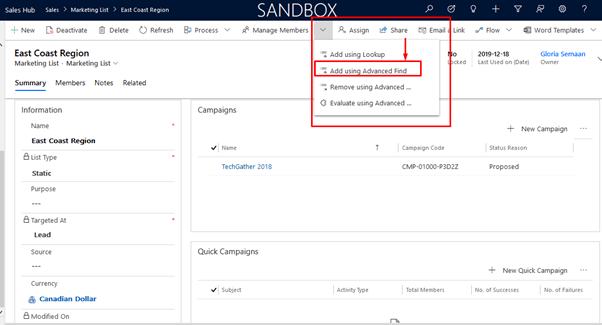
Adding Members to a Static Marketing List
- On the Navigation Bar, click on Sales and go to a list of Contacts, Leads or Accounts. Note that you can only add the record type associated with the marketing list.
- Select all the records you want to add in marketing list (or multiple records)
- Click on Add to Marketing List

- Browse the specific marketing list record in which you want to add selected records
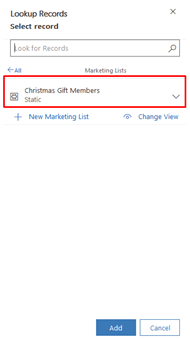
- Click on Add button

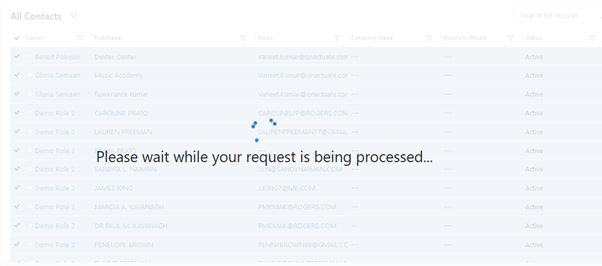
Then D365 CE system will start process your request.
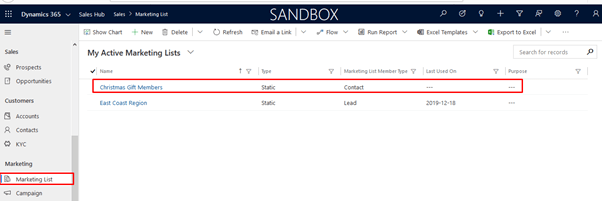
Navigate back to Marketing List & open marketing list
11. Click on Use Query to save it OR click on Back To Query to edit it.
12. Close the window. All records meeting the criteria defined in the query will automatically be added to this list.
Choose an option to add or remove members of this list it can be choose Lookup to add members manually or Choose Advanced Find to add members based on a specific criteria.
Another alternative to add members in the marketing list are as follows: –
Creating a Dynamic Marketing List
- On the Navigation Bar, click on the down arrow to the right of the displayed module.
- Click Marketing, click on Marketing Lists.
- Click on the New button in the command bar.
- Enter Name.
- Select the Targeted At. Note that this cannot be changed once the record is saved and only members of the same type can be added.
- Select Dynamic as List Type. This cannot be changed once the record is saved.
- Click Save.
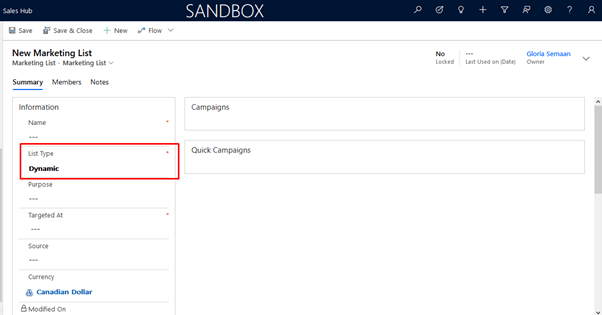
8. Click Manage Members in the Command Bar

9. Create the query.

10.Click on Find to test your query.
11. Click on Use Query to save it OR click on Back To Query to edit it.
12. Close the window. All records meeting the criteria defined in the query will automatically be added to this list.
Adding a Marketing List to a Campaign
- On the Navigation Bar, click on the down arrow to the right of the displayed module.
- Click Marketing, click on Marketing Lists.
- Select the list you want to add to a campaign.
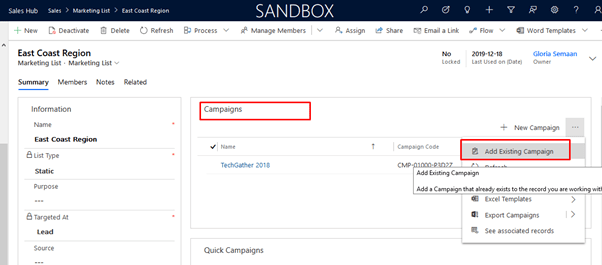
- On the right side of the screen, Click Add Campaign record. (If campaign record already created in the D365 CE)
- Select Look Up More Records and select a Campaign.

 Dynamics 365 Customer Engagement - CRM Power Platform